

|
| www.library.au.edu | ||||||||||
|---|---|---|---|---|---|---|---|---|---|---|
| You have to make Proxy Server Configuration before you go to the AU Library (www.library.au.edu). | ||||||||||
|
||||||||||
| Proxy Server Configuration - Firefox on Windows | ||||||||||
|
Step 1 From the main Firefox window menu bar, select Tools >>>> Options..... *****If you didn't see window menu bar click Alt button on your keyboard. 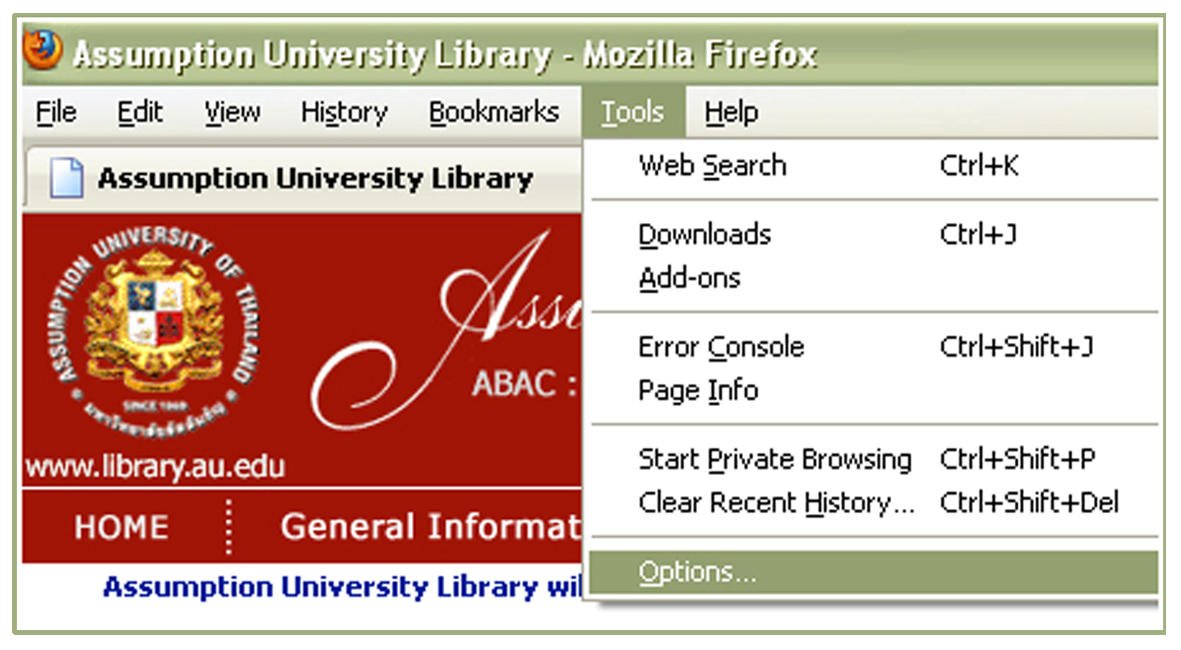 Step 2 Choose the Advanced icon. Then choose the Network tab, and click on the Setting button. 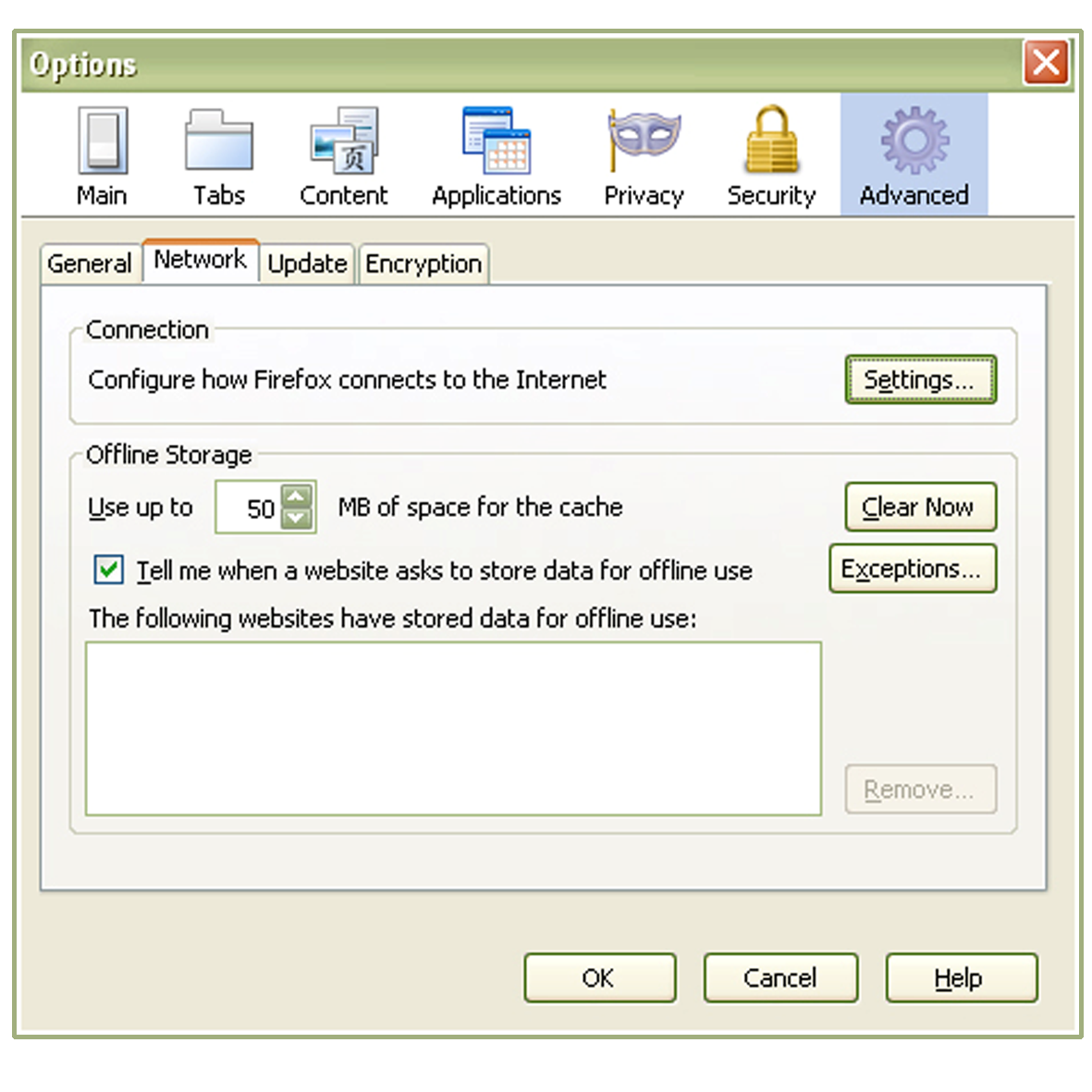 Step 3 Click on the Automatic proxy configuration URl: radio button. Type http://au.edu/proxy.pac in the field. Click OK to close the Connection Setting Window. Click OK to close the Options Window. 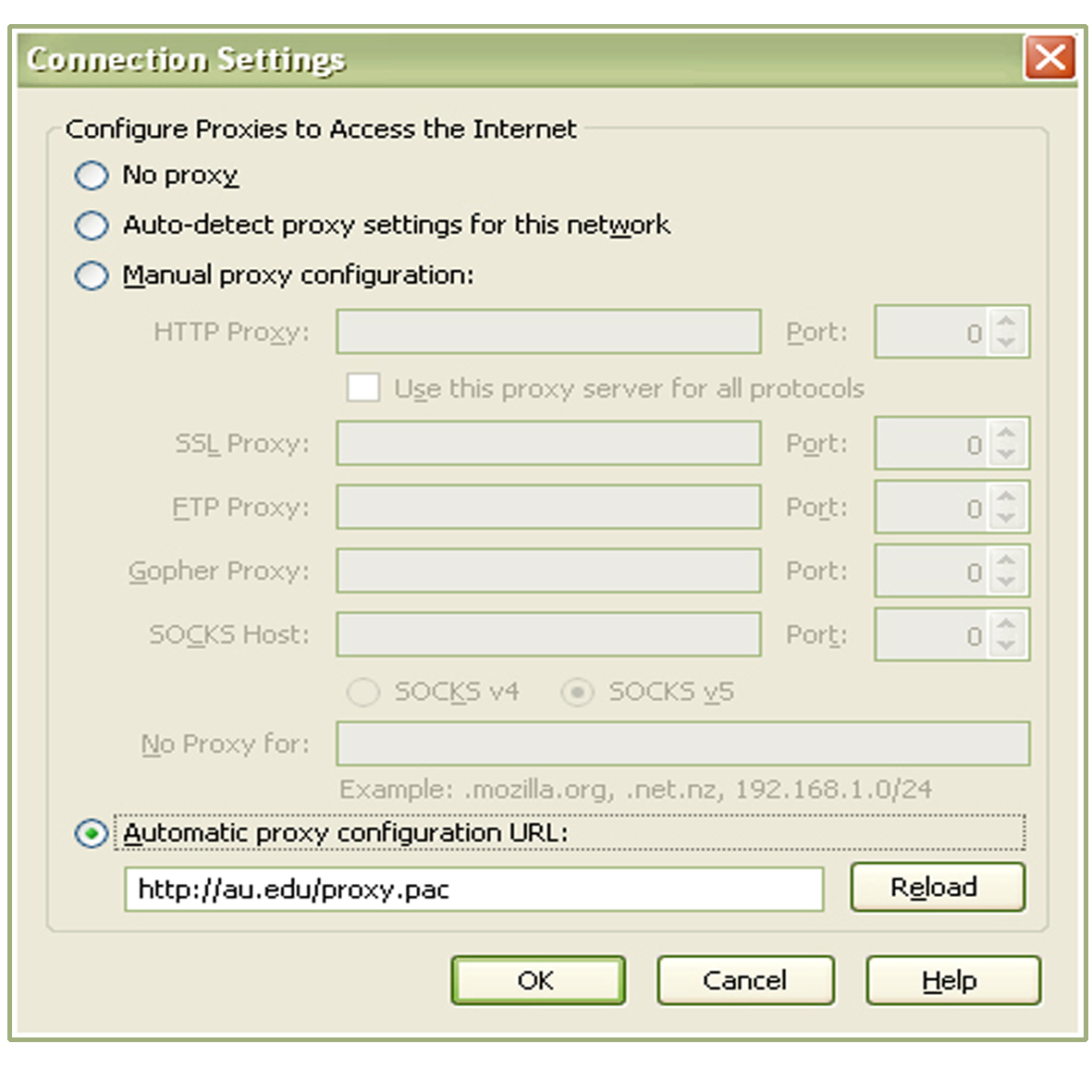 Step 4 Now you can go to AU Library www.library.au.edu . When the Authencation Required message box appears, type your User Name and Password. If you want to know how to serach ebooks @ AU Library, Click Here. After you have finished seraching @ AU Library, you should change to default proxy server configuration on your browser. Do Step 1 to Step 3. At Step 3, you have to choose No proxy radio button. |
||||||||||
| ______________________________________________________________________________________ | ||||||||||
| Proxy Server Configuration - Google Chrome on WINDOWS | ||||||||||
|
Step 1 Click the Wrench icon  in the browser tool bar (upper right). in the browser tool bar (upper right).And click Settings to open the Setting dialog box. 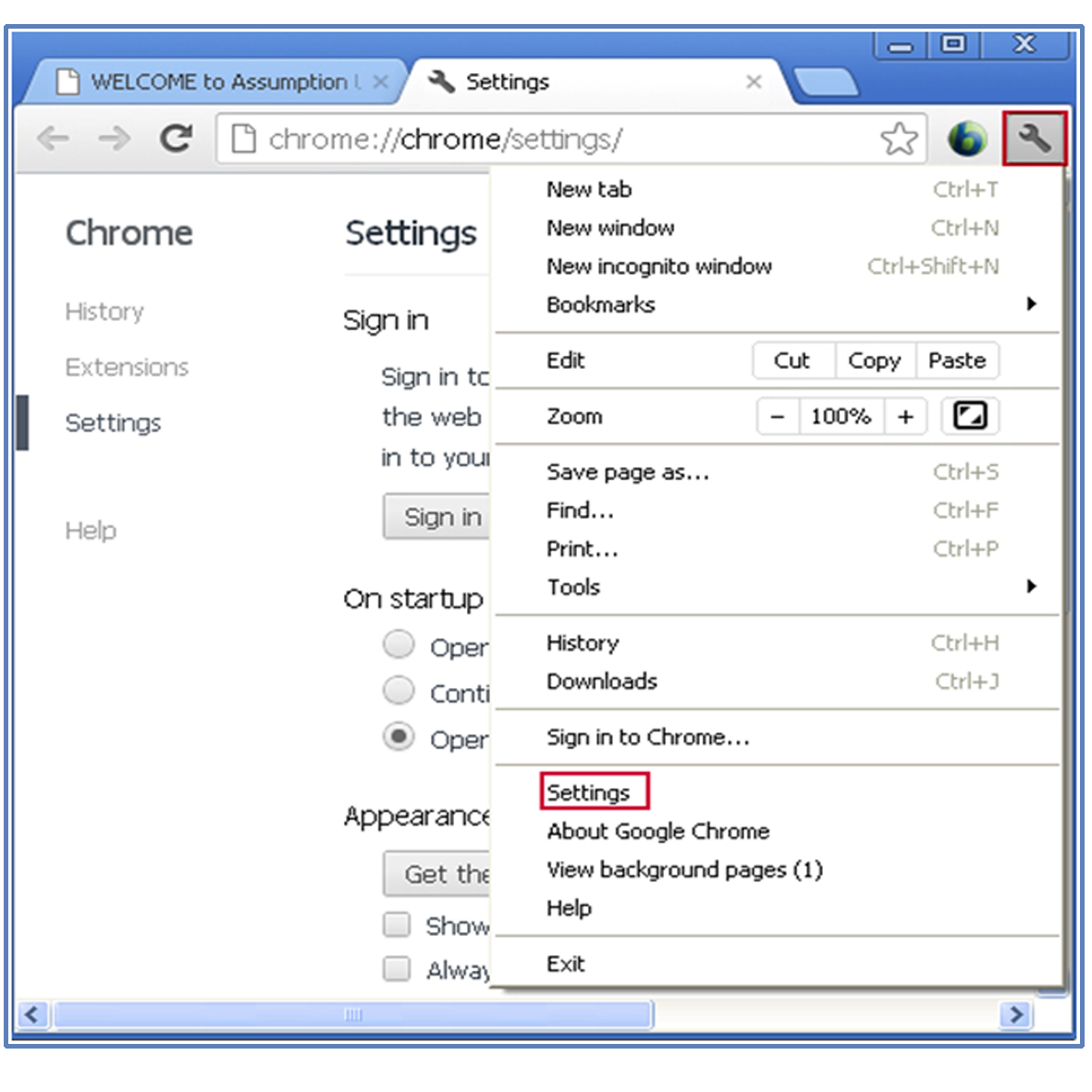 Step 2 Scroll down and click at the button of the screen that says Show advanced settings . 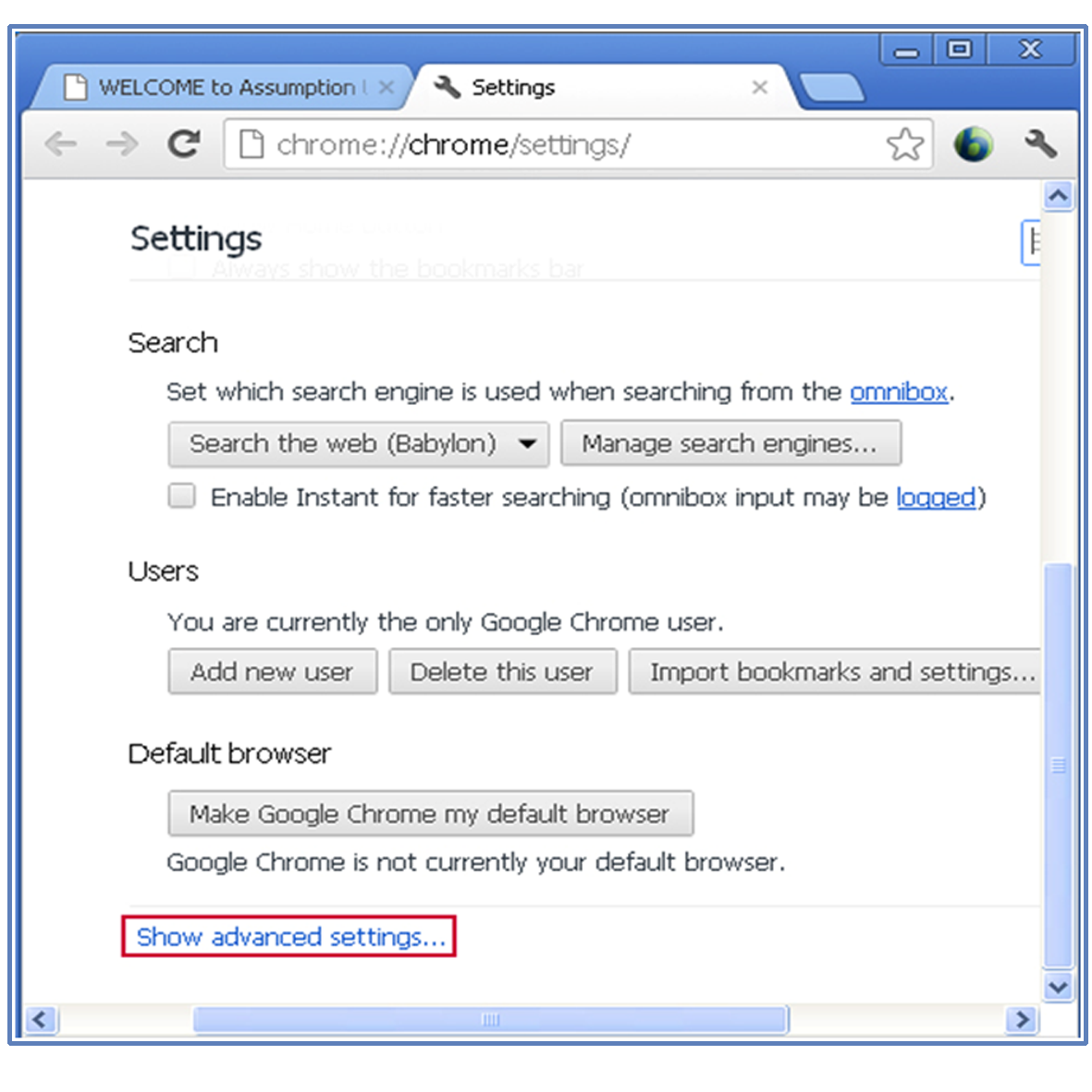 Step 3 Scroll down to the Network section and click the button labeled Change proxy settings. 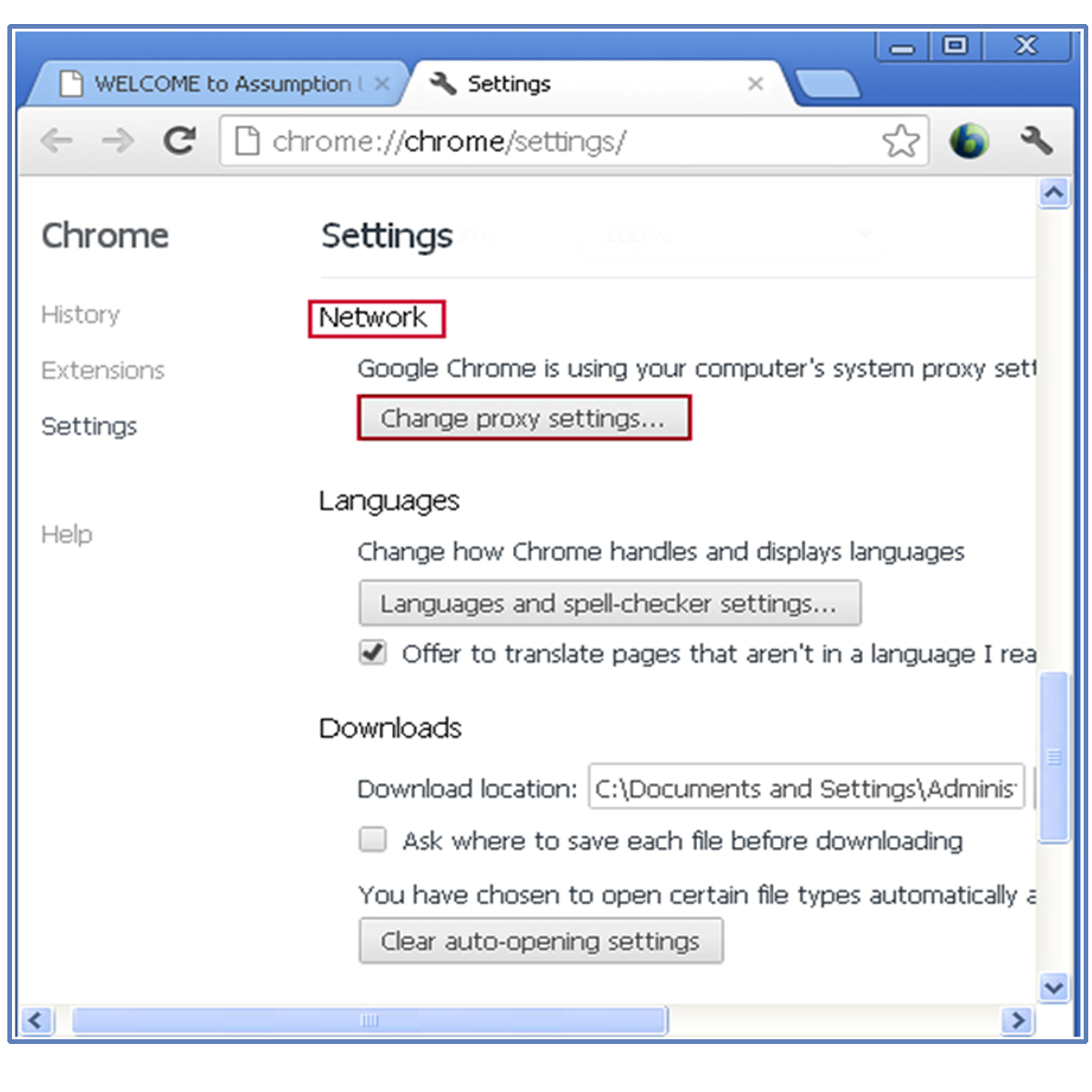 Step 4 Click the Connections tab And click on the Lan Setting button. 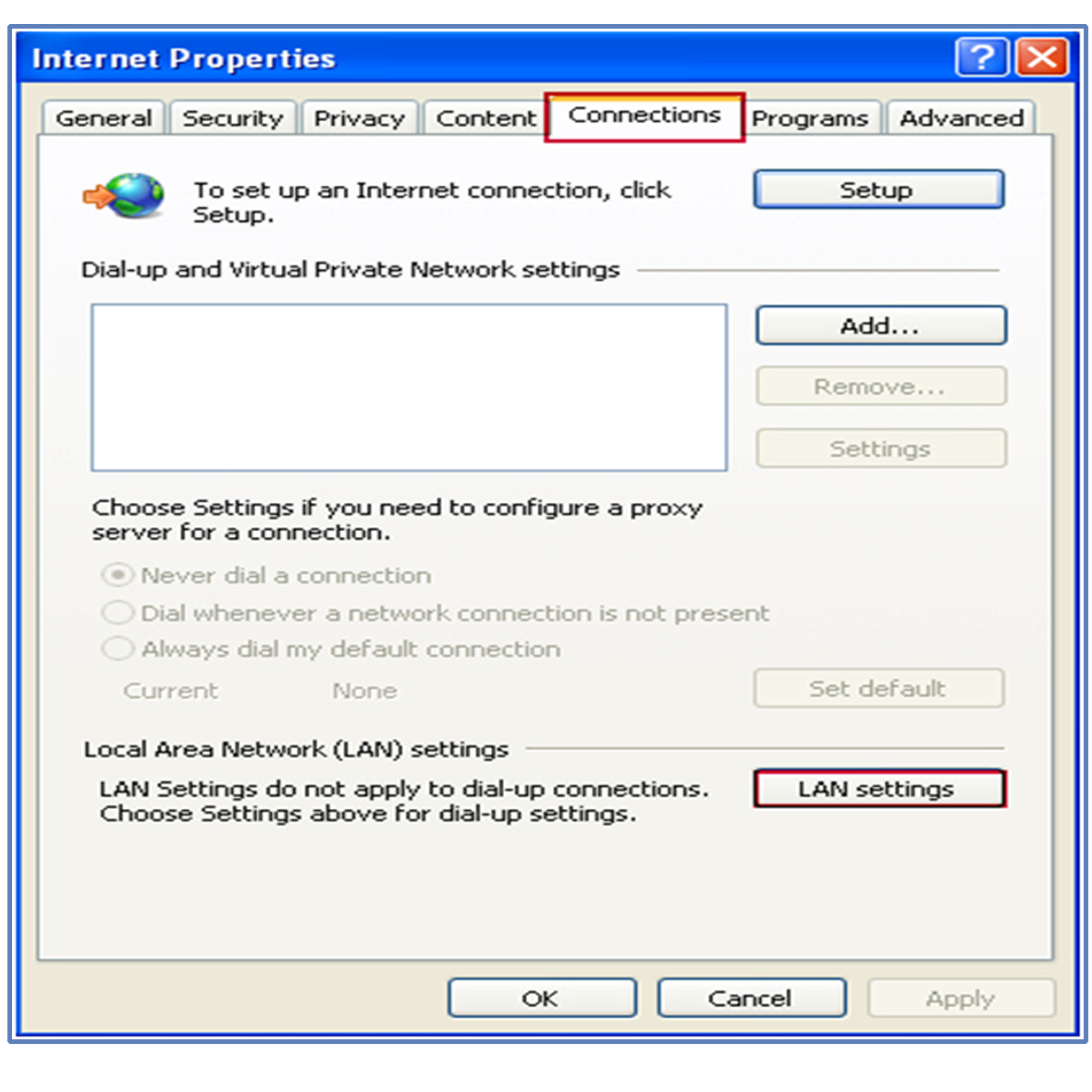 Step 5 Click Use automatic coniguration script in the Automatic Configuration section of the dialog box. And type this URL in the Address box : http://au.edu/proxy.pac. And click OK to save your LAN Settings And click OK to close the Internet Prperties Window.  Step 6 Now you can go to AU Library www.library.au.edu . When the Authencation Required message box appears, type your User Name and Password. If you want to know how to serach ebooks @ AU Library, Click Here. After you have finished seraching @ AU Library, you should change to default proxy server configuration on your browser. Do Step 1 to Step 5. At Step 5, you have to uncheck Use automatic configuration script . |
||||||||||
| ______________________________________________________________________________________ | ||||||||||
| Proxy Server Configuration - For iPad, iPhone and iPod Touch | ||||||||||
|
Step 1 Go to Setting. 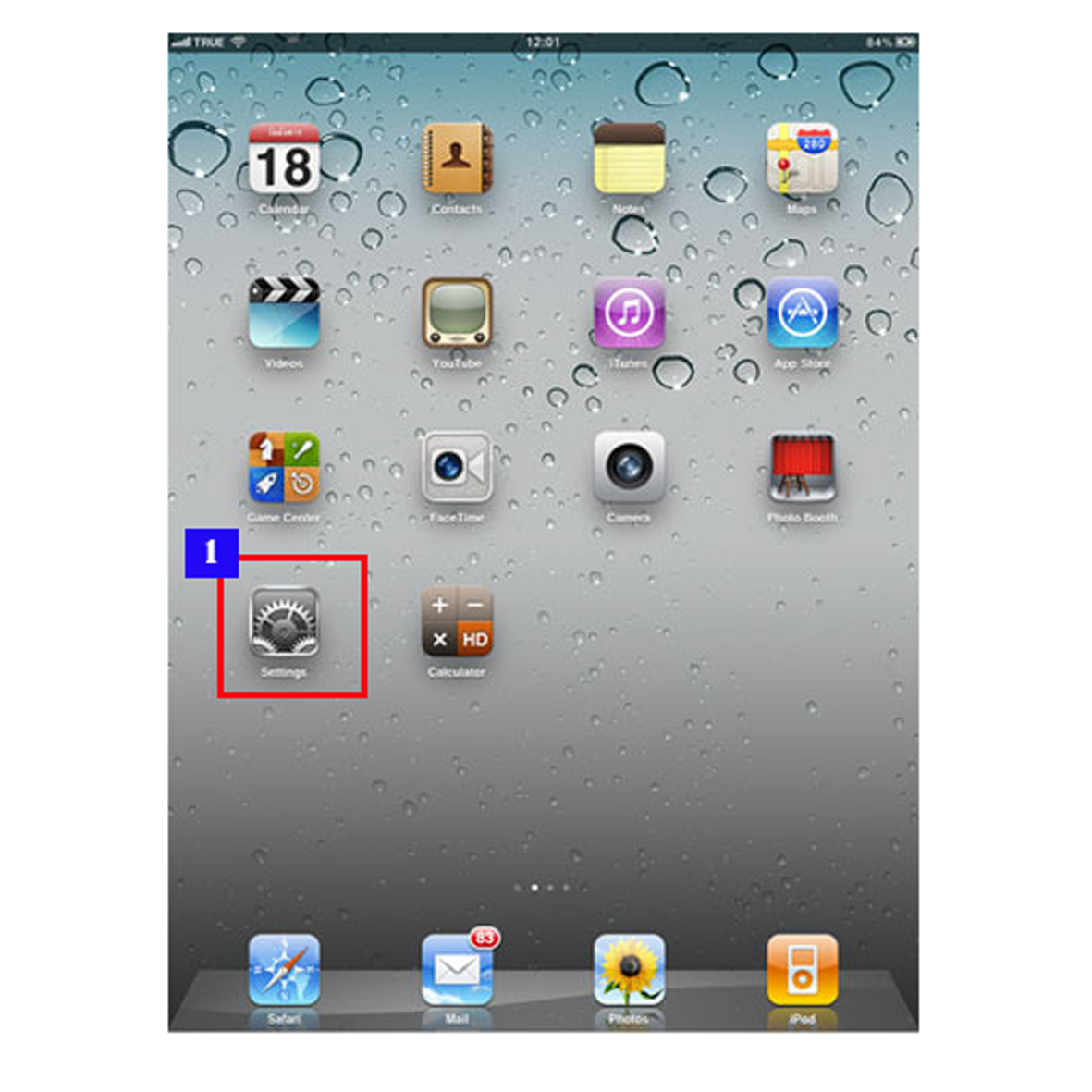 Step 2 Select Wifi. 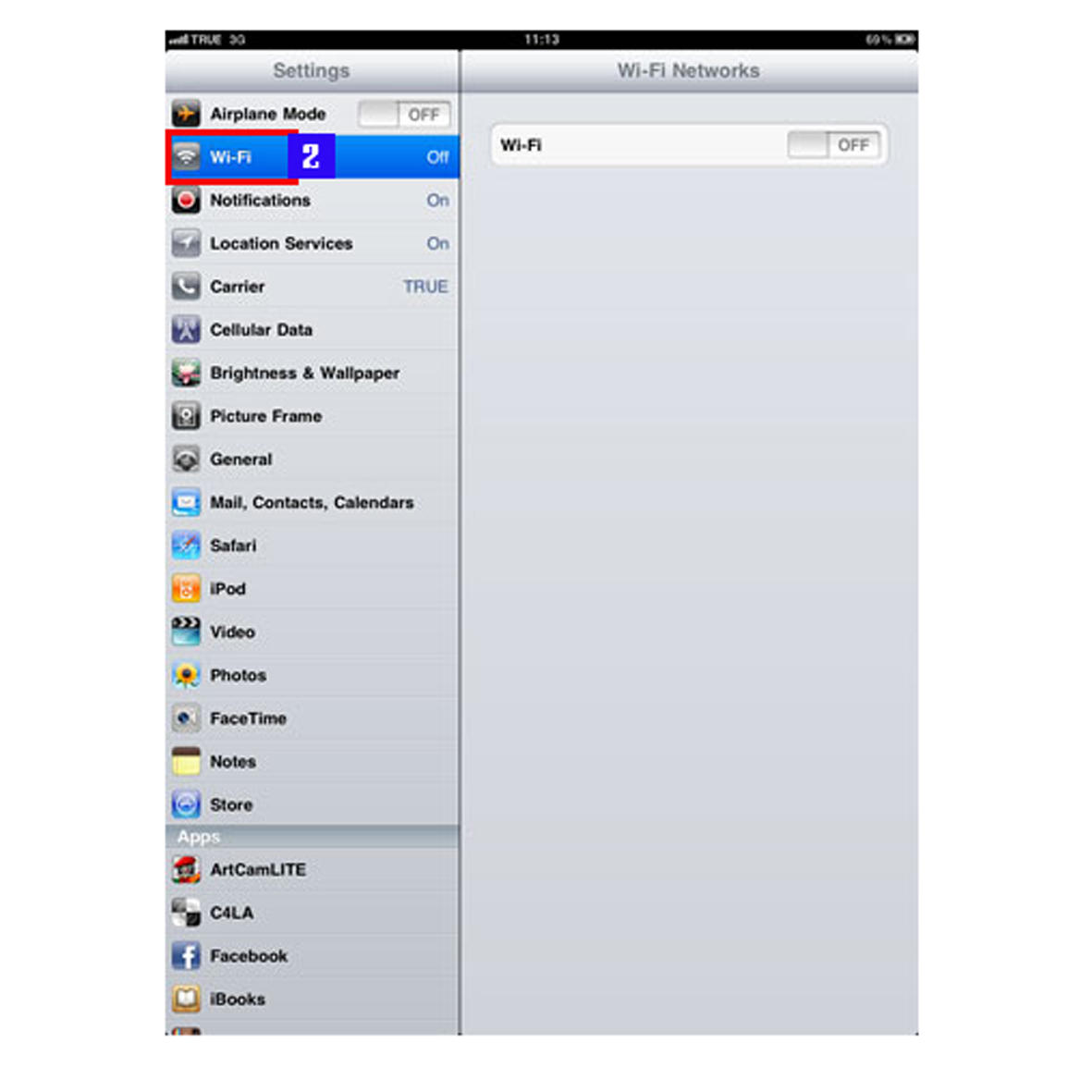 Step 3 Wifi Status Bar switch On . Select the Wifi Network to which you are connected. 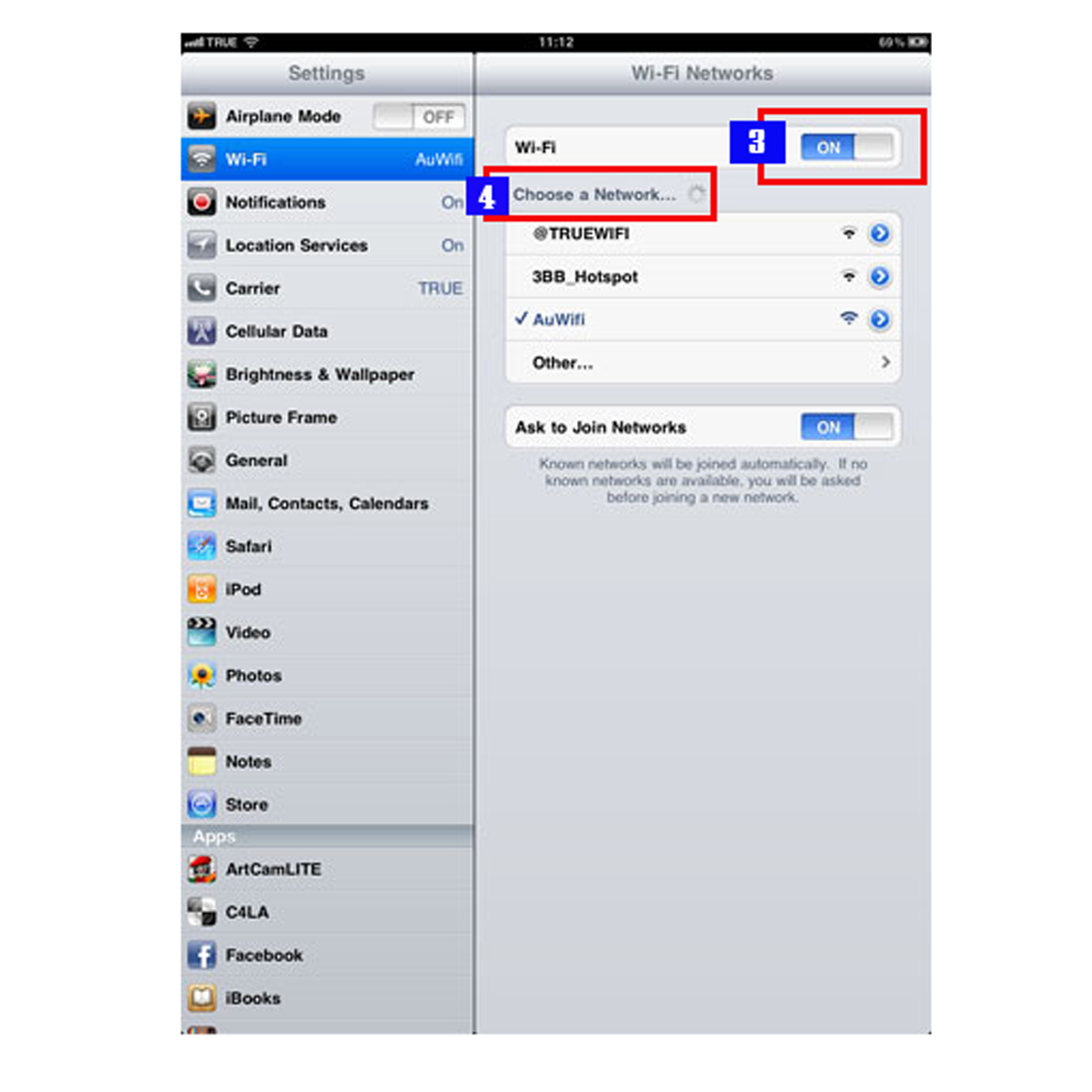 Step 4 In the Wifi Networks window, tab on the arrow to the right of your Wi-Fi network name. Your IP Address selection should be DHCP . Scroll down to the button of the screen to HTTP Proxy. 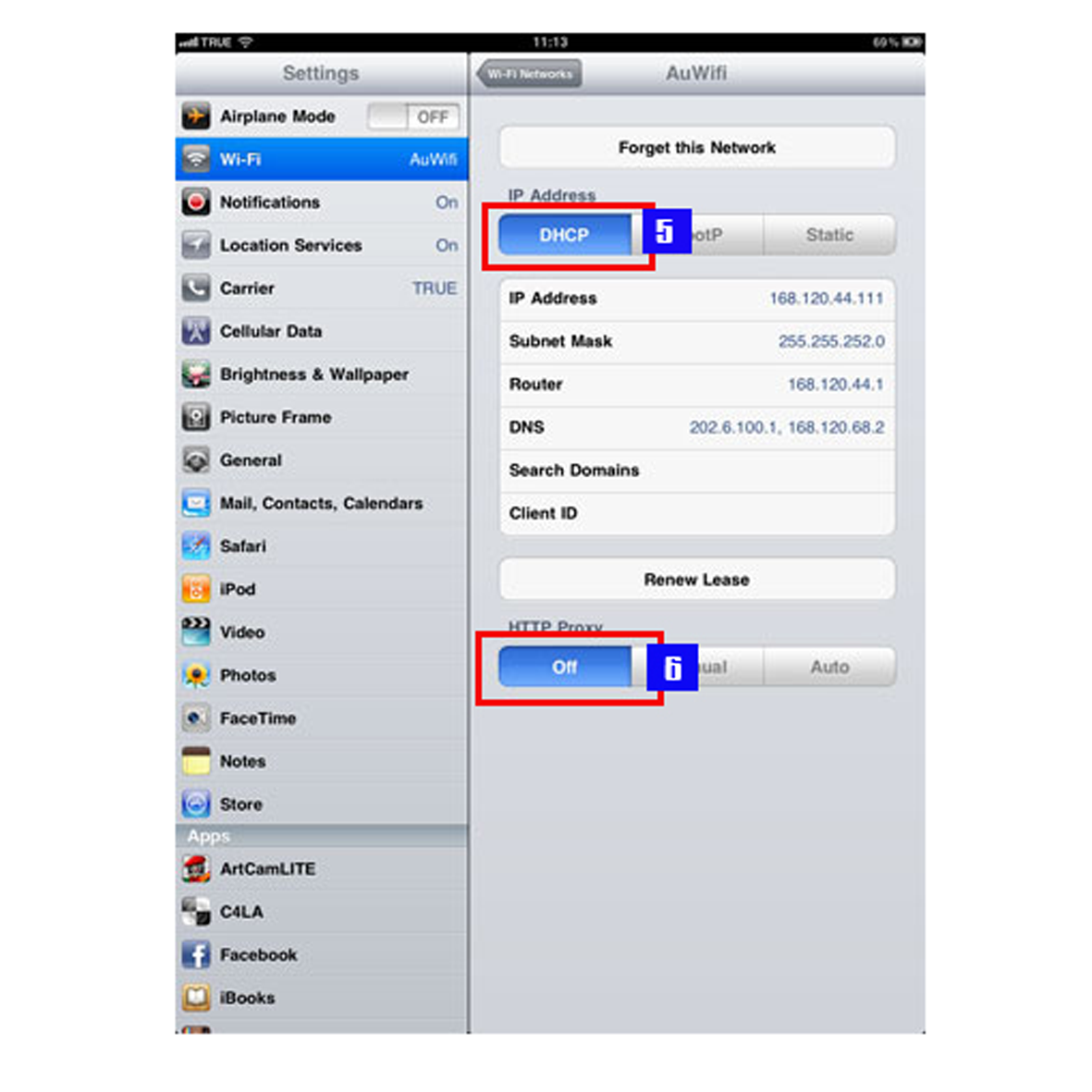 Step 5 Select HTTP Proxy Menu "" AUTO "". Type http://au.edu/proxy.pac in theURL text box:. 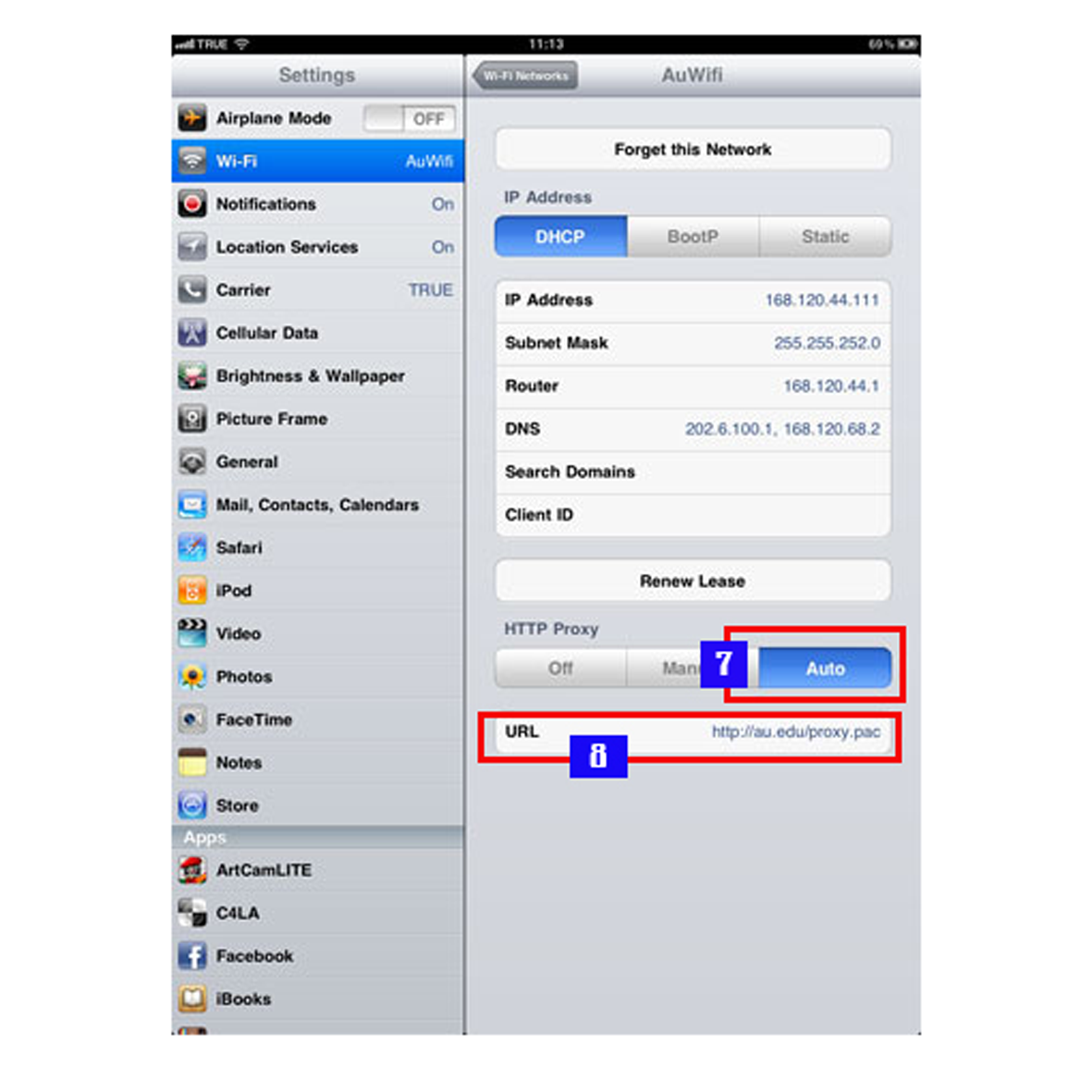 Step 6 Now you can go to AU Library www.library.au.edu . When the Authencation Required message box appears, type your User Name and Password. If you want to know how to serach ebooks @ AU Library, Click Here. After you have finished seraching @ AU Library, you should change to default proxy server configuration on your browser. Do Step 1 to Step 5. And click to Off button under the HTTP Proxy tab. |
||||||||||
| ______________________________________________________________________________________ | ||||||||||
| Proxy Server Configuration - Safari on MAC | ||||||||||
|
Step 1 From the Apple menu select System Preferences. . 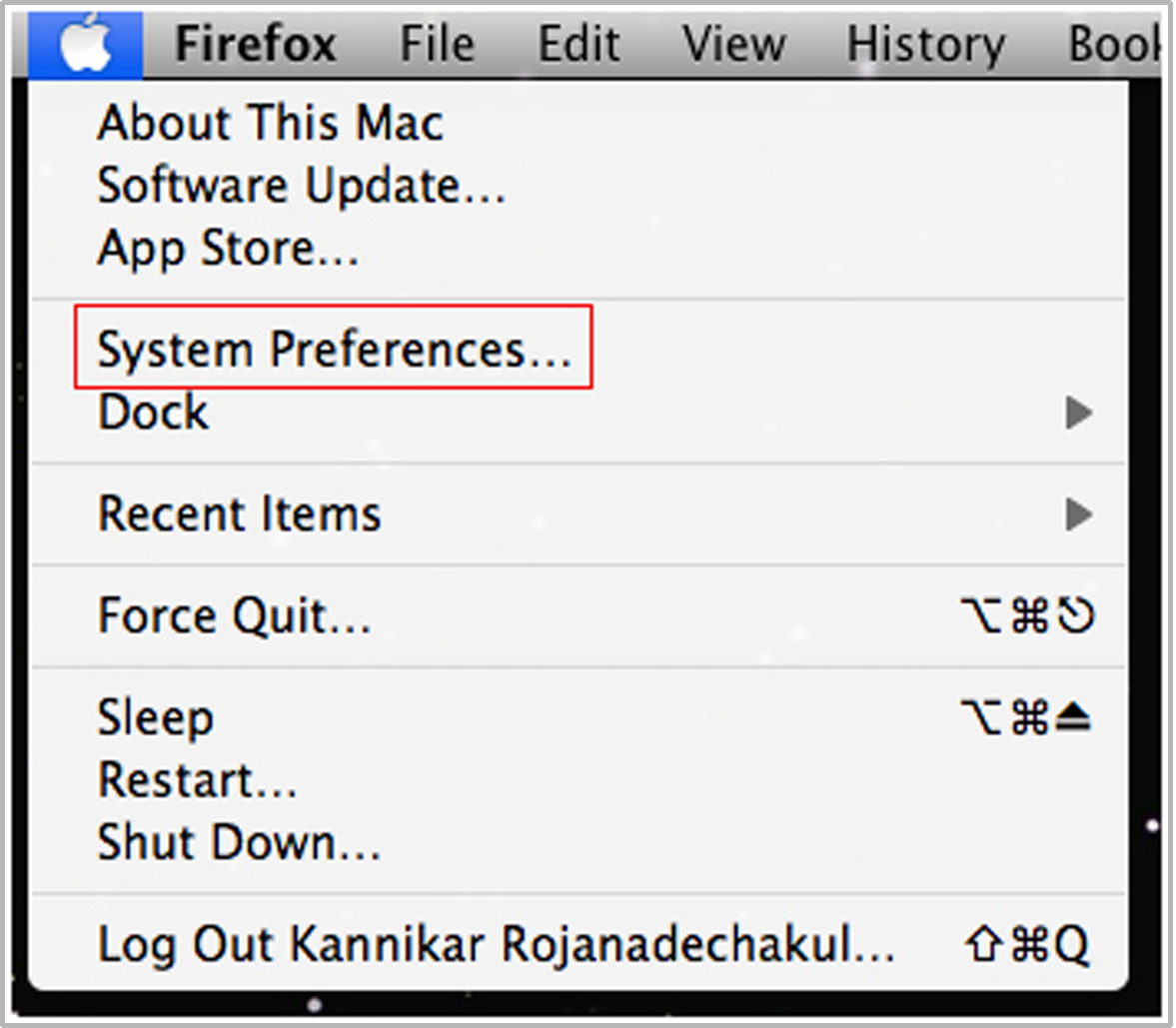 Step 2 Choose the Internet & Wireless icon. Then click on the Network . 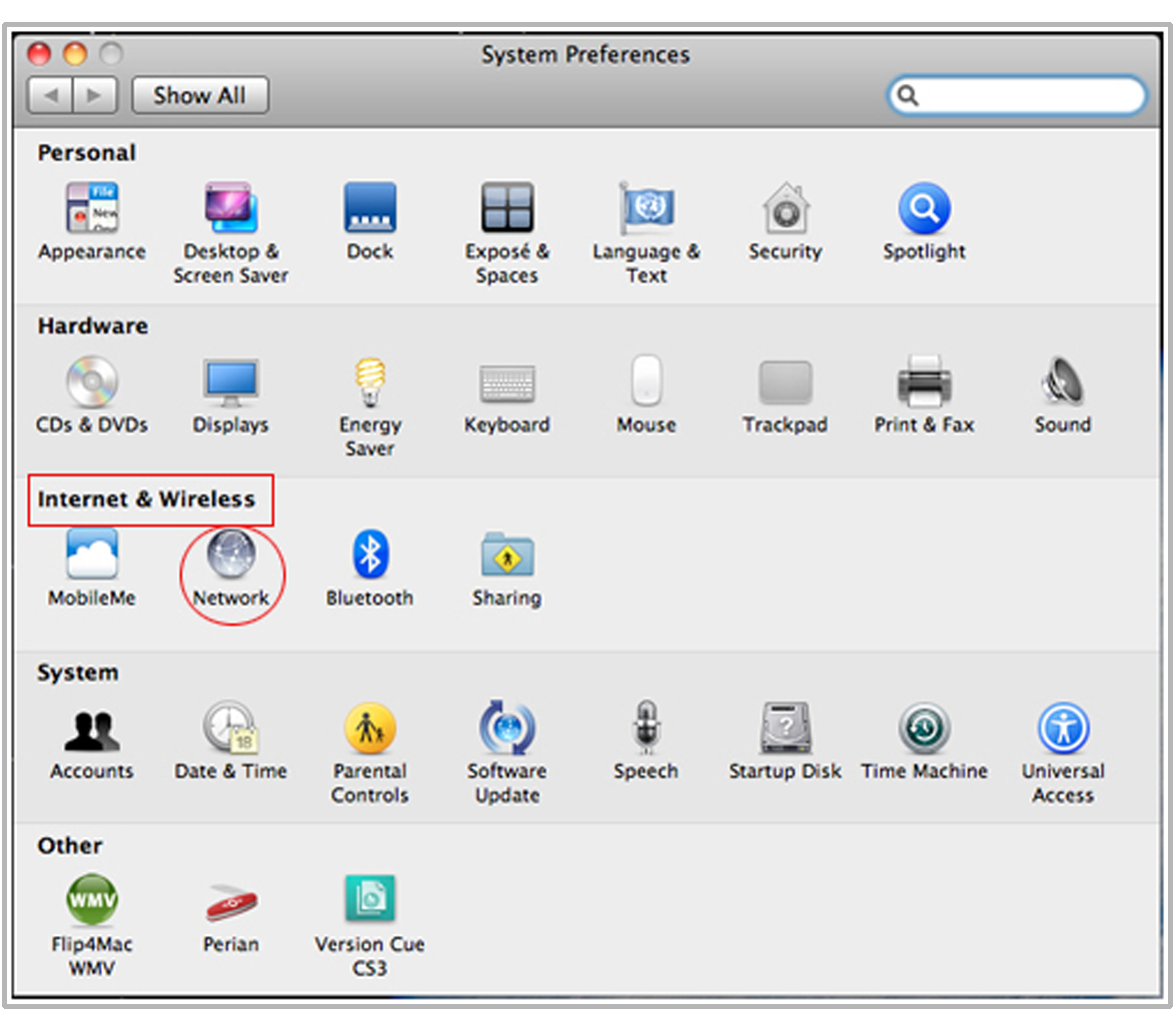 Step 3 Under the AirPort optin, check Remember networks this computer has joined. Click on OK 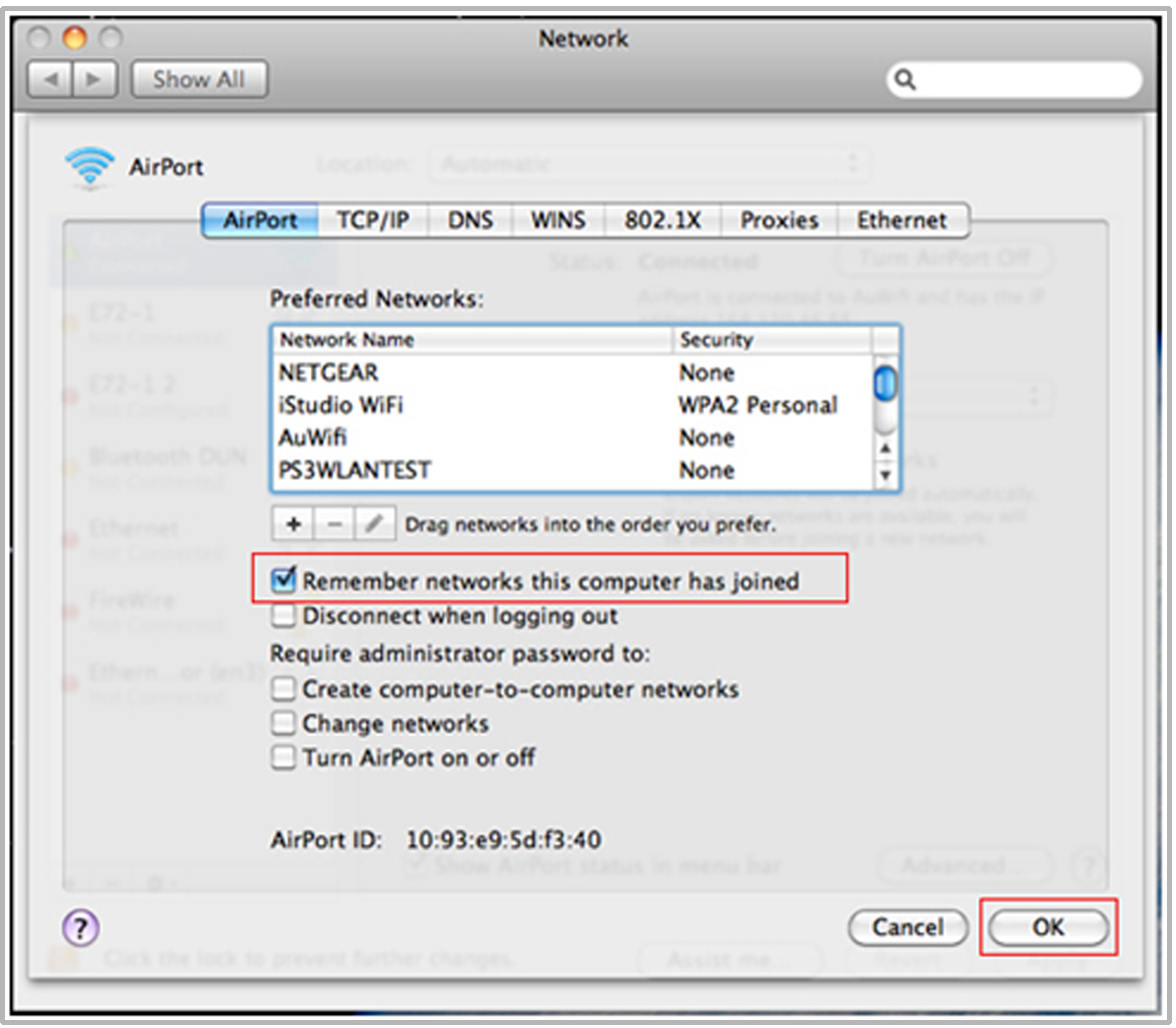 Step 4 Under the Proxies optin, check Automatic Proxy Configuration under 'Select a protocol to configure: 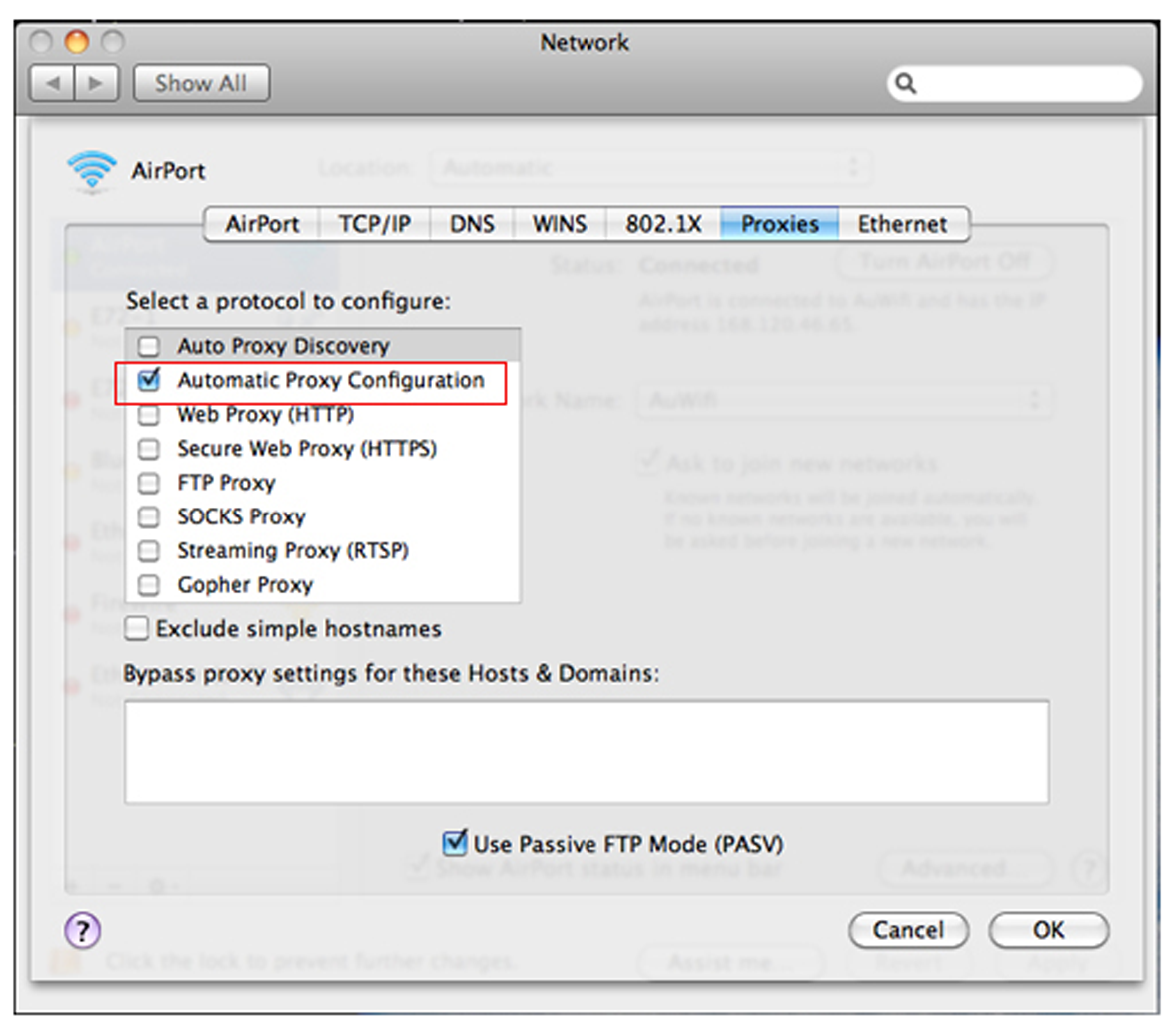 Step 5 Type http://au.edu/proxy.pac in the Automatic Configuration field. Click on OK. 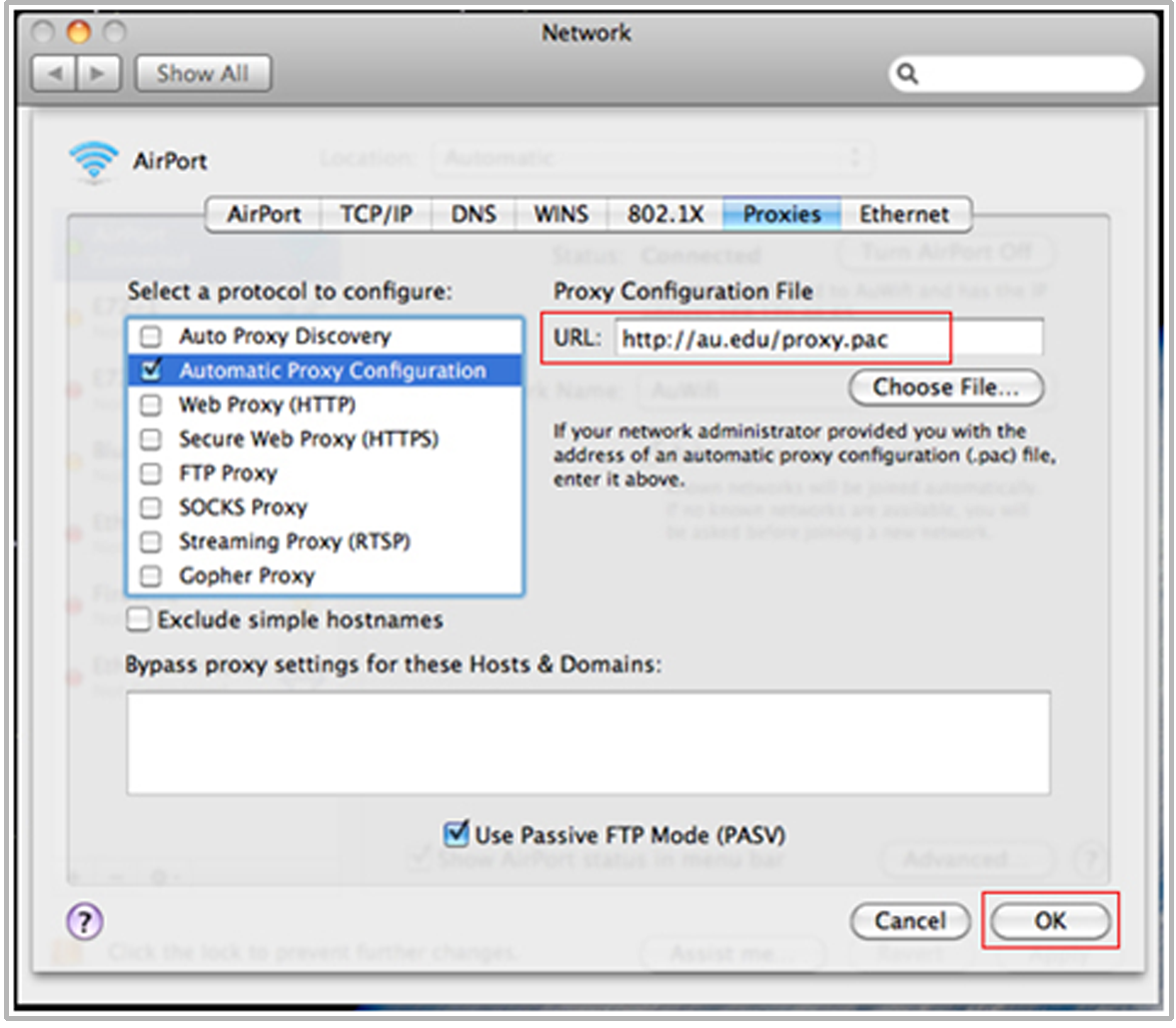 Step 6 Press the Apply button. 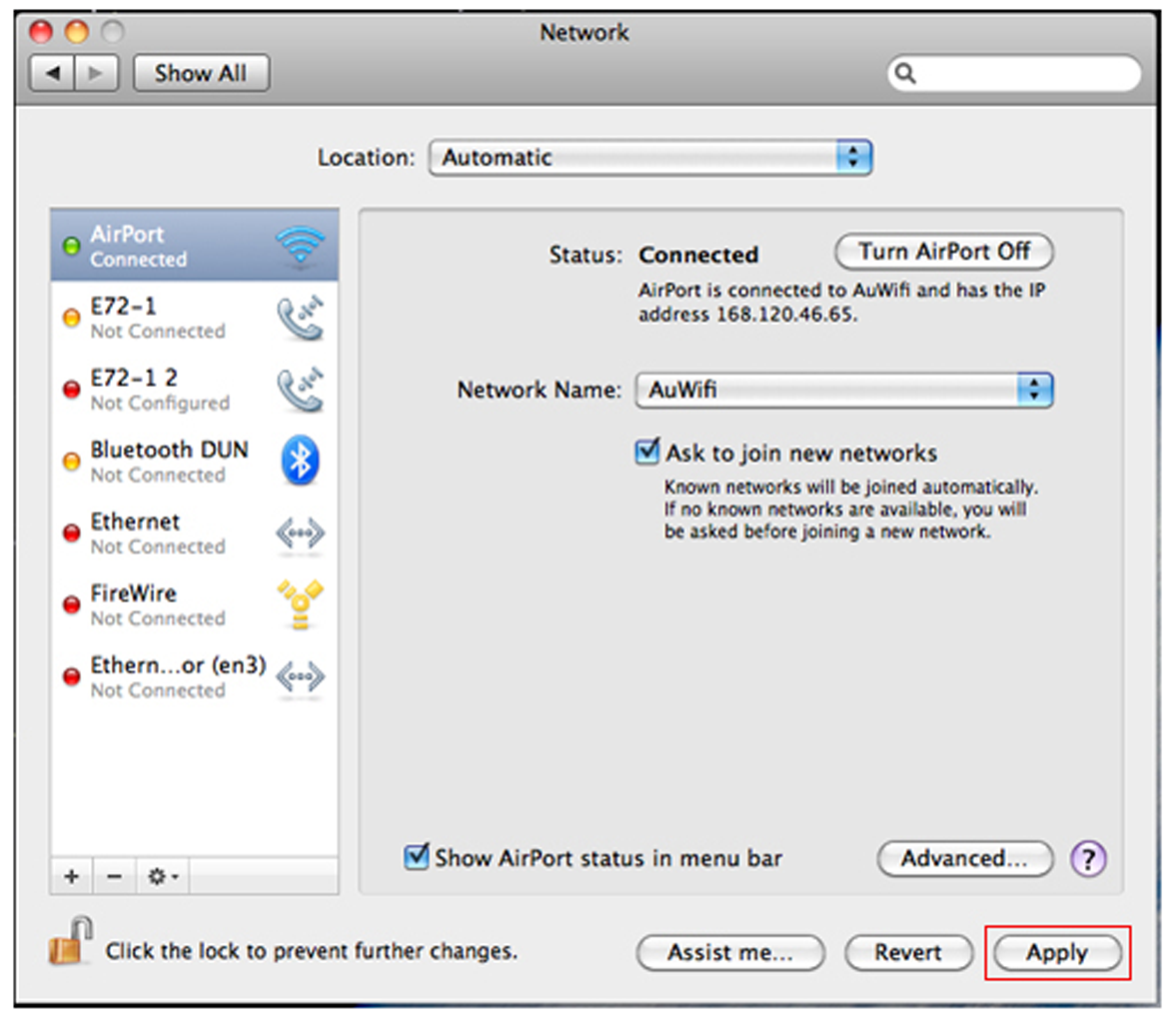 Step 7 Now you can go to AU Library www.library.au.edu . When the Authencation Required message box appears, type your User Name and Password. If you want to know how to serach ebooks @ AU Library, Click Here. After you have finished seraching @ AU Library, you should change to default proxy server configuration on your browser. Do Step 1 to Step 6. At Step 4, you have to uncheck Automatic Porxy Configuration. |
||||||||||





|

|

|

|

|

|

|
|
|
Web Developer: Myanmars.NET, Yangon,
Myanmar
. Assistant Web Designer : Paing Thu @ MPDC ABAC Myanmar Offshore Office © Copyright 2011 by Myanmar Professional Development Center |
Myanmar Professional Development Center (MPDC) |